
I want to sell — how do I get my shop verified and live on Kadaikodi?
To start selling on Kadaikodi, you follow a structured onboarding and verification path to get your storefront ready and discoverable
About this answer — Produced by our own assistant on 23 September 2026 from our published documentation. The pages it drew on are linked under the answer. It is generated text, not a statement from a person — where it and a linked page disagree, the page is right.
Answer
To start selling on Kadaikodi[1], you follow a structured onboarding and verification path to get your storefront ready and discoverable:
- Set Up Business Identity: Sign in to the merchant console to create your merchant record. Enter your business name, category, address, and specify whether you offer products, services, or both (Onboard and Verify a Cart[2]).
- Submit Verification Documents: Work through the onboarding wizard to upload required compliance and identity records, such as owner ID proof, tax registration, a shop photo, and category-specific licenses. Submitting shifts your status to pending review while platform administrators evaluate the application (Onboarding, Verification and Go-Live Concept[3]).
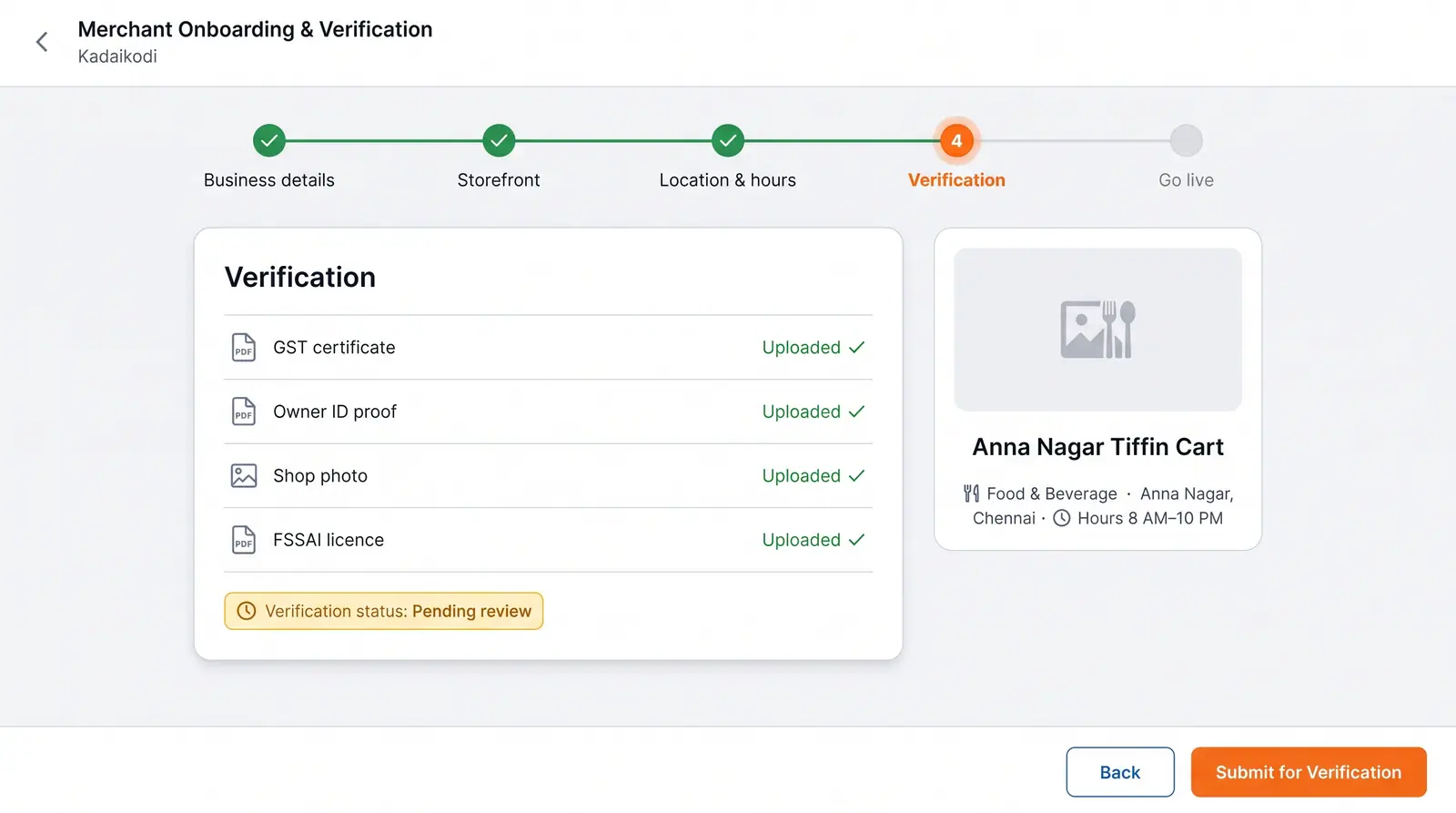 (opens in a new tab)
Illustration of the concept, not a screenshot of the actual product — Onboarding, Verification and Go-Live[3]
(opens in a new tab)
Illustration of the concept, not a screenshot of the actual product — Onboarding, Verification and Go-Live[3]
- Configure Operations and Fulfillment: Once approved, open service configuration to define your weekly business hours (with per-day open/close times and closed-day toggles), set your service radius on the map, and choose your fulfillment modes across pickup, delivery, cart dispatch, or on-location service (Onboarding, Verification and Go-Live Concept[3]).
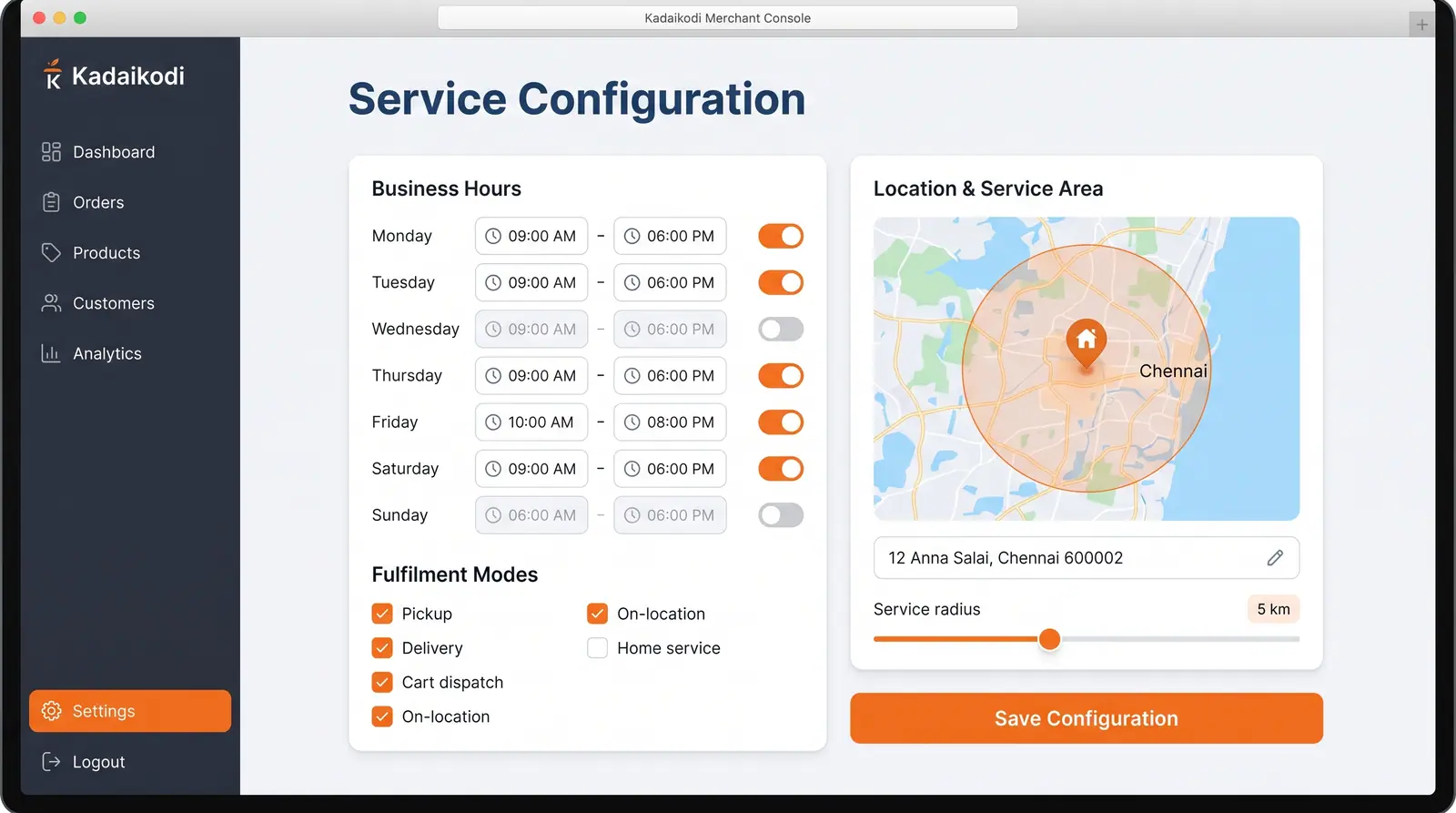 (opens in a new tab)
Illustration of the concept, not a screenshot of the actual product — Onboarding, Verification and Go-Live[3]
(opens in a new tab)
Illustration of the concept, not a screenshot of the actual product — Onboarding, Verification and Go-Live[3]
- Open for Business: After saving your service configuration, use the service toggle on your merchant dashboard to set your status to "Open," making your storefront live and discoverable for customer orders (Onboard and Verify a Cart[2]).
To explore the setup workflow in detail, review the Kadaikodi onboarding and verification guide[2].
Sources
The pages this answer was drawn from.
More in Product
What is Kadaikodi and who is it for?
Kadaikodi is a headless cart, checkout, catalog, order, and merchant control plane designed to manage the entire selling surface of modern commerce.
5 sourcesCan I sell products and take service bookings from the same catalog?
Yes. Kadaikodi natively supports a unified catalog model, allowing you to list physical products and bookable services side by side under a single storefront, cart, and…
5 sources