
Merchant Dashboard and Order Lifecycle
See the day's revenue, orders and rating, open the storefront, and move each order from new to dispatched.
These images are illustrations of the concept, not screenshots of the actual product.
Overview
A cart owner's day is a stream of small decisions: are we open, what just came in, what is ready to go out, and how is today going compared with yesterday. This concept brings those questions into two connected views of the Kadaikodi merchant console, a dashboard for the state of the business and an order board for moving each order through its lifecycle.
The dashboard opens with a personal greeting and a prominent service toggle that shows whether the storefront is open, next to an Update Location control, notifications and help. Four KPI cards report today's revenue with its change from yesterday, orders today, average order value and the cart's rating with the number of reviews behind it. A Recent Orders table lists order number, customer, items, a status chip (Preparing, Ready or Delivered), total, and actions to view or print each order, with a View All Orders link. On the right, a seven-day revenue chart marks its high point with a value tooltip, and a Top Items list shows best sellers with their order counts and trend arrows.
The Orders page turns that list into a board. Tabs across the top count New, Preparing and Ready orders alongside a Completed tab, and a Refresh button pulls in the latest. Three columns hold order cards showing the order number, how long ago it was placed, the customer, the total and each item with its quantity. The buttons change with the stage: new orders offer Accept and Start Preparing, orders in preparation offer Mark Ready, and ready orders offer Dispatch.
Each action is designed to advance a single order record that the customer follows on their tracking screen and that workers pick up for delivery, while the totals roll up into the dashboard figures and the Analytics area linked from the sidebar.
What this concept shows
- Service open/closed toggle and Update Location control in the header
- KPI cards for today's revenue, orders, average order value and rating
- Recent Orders table with status chips and view and print actions
- Seven-day revenue trend with its high point marked
- Top Items list with order counts, amounts and trend arrows
- Order board with New, Preparing and Ready columns and counts on each tab
- Stage-specific actions: Accept, Start Preparing, Mark Ready and Dispatch
- Elapsed time since each order was placed
How it works
- Switch the service toggle to open to start taking orders for the day.
- Check today's revenue, order count, average order value and rating on the dashboard.
- Open Orders to see incoming orders waiting in the New column.
- Accept an order, then tap Start Preparing when the kitchen begins work.
- Tap Mark Ready once the order is packed and waiting.
- Tap Dispatch to hand the order off for delivery or pickup.
- Return to the dashboard to watch revenue and top items update through the day.
Who it's for
- Cart and shop owners
- Kitchen and counter staff
- Store managers running a busy service window
- Delivery coordinators
Illustrations
2 illustrations of this concept. Select one to view it full size.
Merchant Dashboard With KPIs and Recent Orders
This illustration shows the home page of the merchant console on desktop. A left sidebar lists Dashboard, Orders, Catalog, Analytics, Staff, Settings and Raise Capital, with the signed-in owner and a sign-out icon at the bottom. The header greets the owner and holds a green Service: Open toggle, an Update Location link, notifications and help. Four KPI cards show today's revenue with a percentage change from yesterday, orders today, average order value, and the cart's rating with its review count. A Recent Orders table lists sample orders with order number, customer, items, a status chip reading Preparing, Ready or Delivered, the total, and eye and printer icons to view or print, ending in a View All Orders link. On the right, a Last 7 days Revenue area chart marks its high point with a value tooltip, and a Top Items list shows sample dishes with thumbnails, order counts, an amount and an upward trend arrow.
Order Board From New to Dispatch
This illustration shows the Orders page of the merchant console, beside a dark sidebar with Dashboard, Orders, Products, Customers, Analytics and Settings. Tabs across the top count orders by stage, New, Preparing and Ready, alongside a Completed tab, with a Refresh button on the right. The board below has three columns, each headed by a count badge. Every order card shows the order number, how many minutes ago it was placed, the customer's first name, the rupee total and the line items with quantities, all sample data. Cards in the New column carry two buttons, Accept and Start Preparing; cards in Preparing carry a single Mark Ready button; and the card in Ready carries Dispatch. A notification bell and a Merchant Admin profile chip sit in the lower corner. The layout makes the next step for every order visible without opening it.
Topics
- merchant dashboard
- order management board
- kitchen order queue
- accept prepare ready dispatch workflow
- open and close store toggle
- daily sales KPIs
- small business order tracking
- food cart order management
- kanban order board
Related concepts
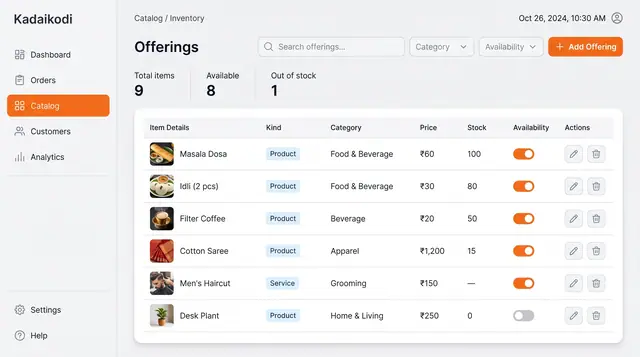
Catalog and Inventory Management
Manage products and bookable services in one table, with price, stock and an availability switch for each.
1 illustration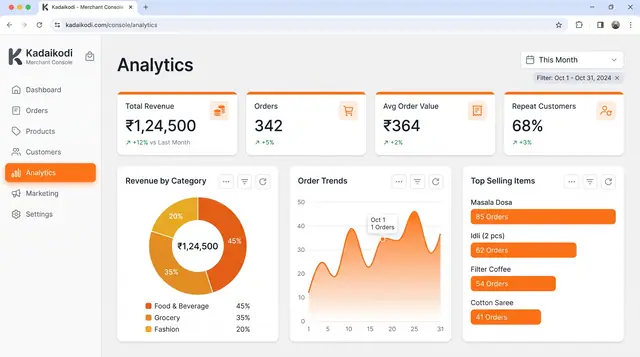
Sales Analytics and Demand Outlook
Revenue, orders, top sellers and peak hours from a merchant's own orders, plus a look ahead at the next busy stretch.
3 illustrations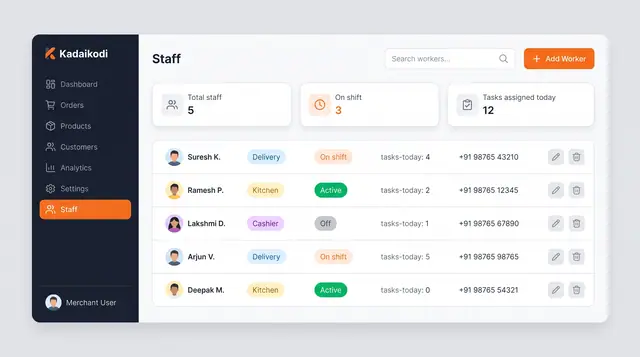
Staff Roster and Delivery Task Dispatch
A merchant roster and a worker app that turn shift status into assigned deliveries, guided task steps and weekly availability.
4 illustrations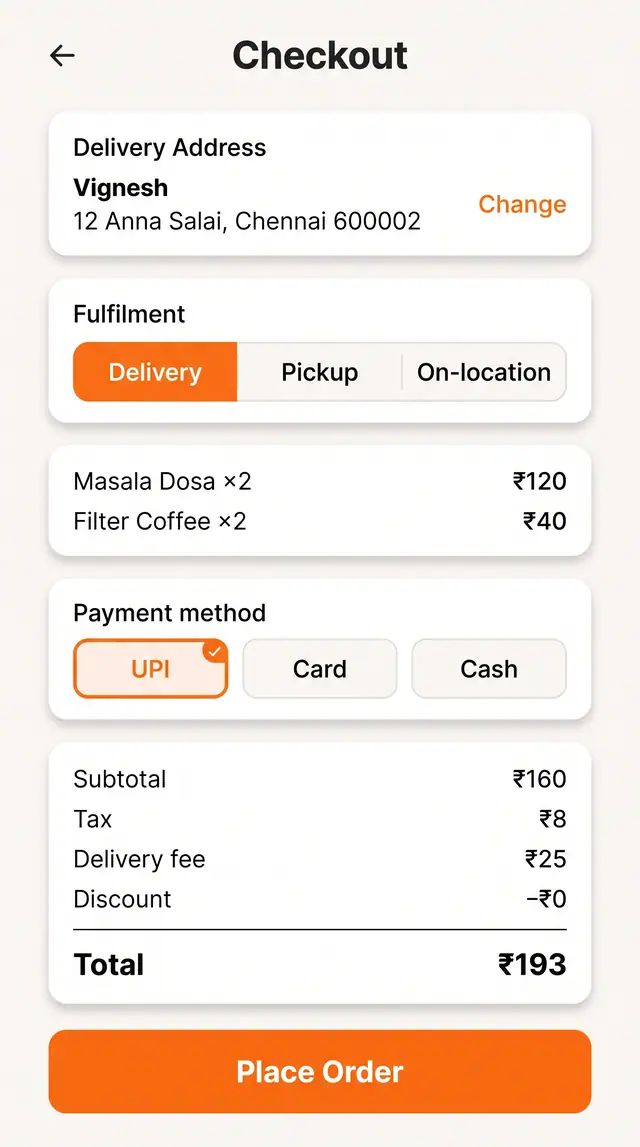
Checkout and Live Order Tracking
Choose fulfillment, address and payment against a clear price breakdown, then follow the order through to the door.
2 illustrations