
Ratings, Reviews and Owner Responses
An aggregate score, a star-by-star breakdown, a quick review form and visible owner replies on one screen.
These images are illustrations of the concept, not screenshots of the actual product.
Overview
In a marketplace of small carts and shops, reputation is often what decides between two stalls on the same street. This concept explores how the Kadaikodi customer app could present a cart's reviews so that a newcomer can judge quality at a glance, a regular can add their voice in a few seconds, and the owner can answer in public.
The screen leads with the aggregate: a large average score, a row of stars and the total number of reviews. Under it, a five-row breakdown shows how many reviews landed at each star level as horizontal bars with counts, so a customer can see whether a high average rests on consistent experiences or on a handful of outliers.
A Write a review card sits directly below the summary, with a five-star selector, a text box asking the customer to share their experience and a Submit Review button. The feed of individual reviews follows. Each card shows the reviewer's avatar and short name, their star rating, how long ago they posted and their comment. Where the owner has replied, the response is nested inside the original review in an indented panel labeled Owner response, with its own timestamp. In the sample, a lukewarm three-star review about spice levels is answered with an apology and a promise to look into the spice level for the next batch.
The design ties reviews to the order lifecycle: customers can reach the form from the Rate action on a past order, the resulting score is designed to feed the rating card on the merchant's dashboard, and the owner's replies build a visible record of how the cart handles feedback.
What this concept shows
- Large average rating with stars and a total review count
- Five-level star distribution shown as bars with per-level counts
- Inline Write a review card with star selector, text box and Submit Review button
- Review cards with avatar, short name, star rating, relative time and comment
- Owner responses nested under the review they answer, with their own timestamp
- Mixed ratings visible in the feed, not only five-star praise
How it works
- Open a cart's reviews to see its average score and total review count.
- Read the star distribution to judge how consistent the ratings are.
- Scroll the review feed and look for owner responses under critical reviews.
- Pick a star rating in the Write a review card and describe the experience.
- Tap Submit Review to add the review to the cart's feed.
Who it's for
- Customers choosing between nearby carts
- Regular customers who want to share feedback
- Cart owners managing their public reputation
- Marketplace operators monitoring merchant quality
Illustrations
1 illustration of this concept. Select one to view it full size.
Cart Reviews With Rating Breakdown and Owner Reply
This illustration shows a cart's reviews on a phone-sized panel. At the top, a large average score sits beside a row of stars and a total review count, followed by five horizontal bars for the five star levels, each with a count at the end; most of the sample reviews sit at the top level. A Write a review card follows, with five selectable stars, a text box inviting the customer to share their experience, and a Submit Review button. Below, individual review cards show an avatar, a first name with an initial, a star rating, a relative timestamp such as two days or three weeks ago, and a short comment about the food, packaging or delivery. One three-star review about spice levels has an indented Owner response panel beneath it, with its own timestamp and a reply that apologizes, thanks the customer and promises to look into the spice level for the next batch.
Topics
- customer reviews and ratings
- star rating breakdown
- write a review app
- owner response to reviews
- merchant reputation management
- local shop reviews
- reply to customer feedback
- food stall ratings
Related concepts
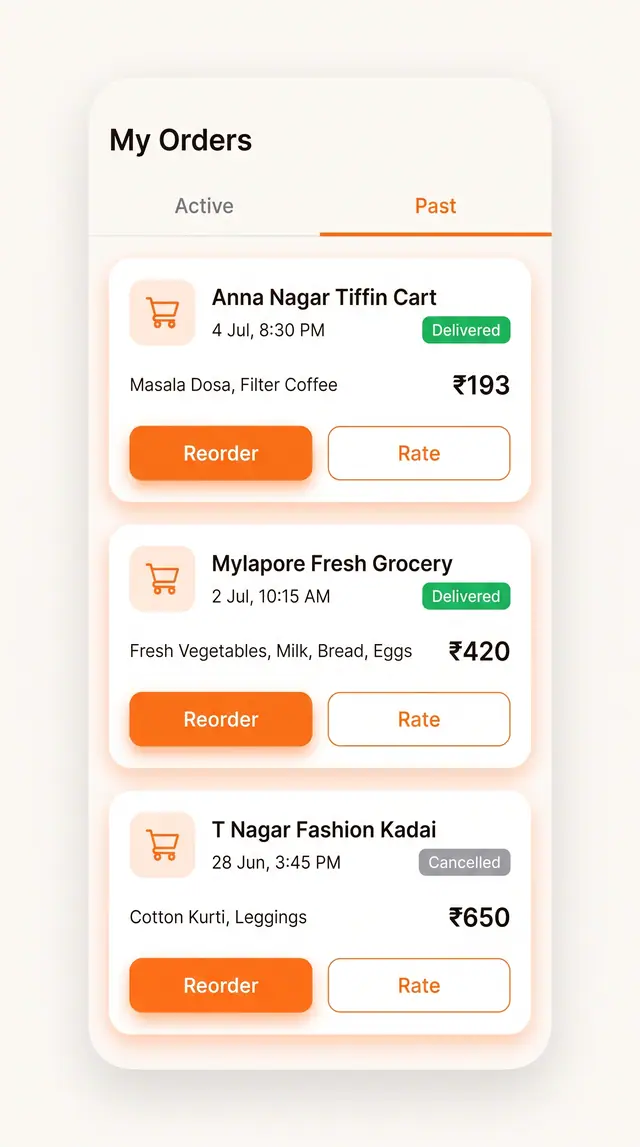
Order History, Favorites and Reorder
Past orders and saved carts sit one tap away from a repeat purchase, with rating close at hand.
2 illustrations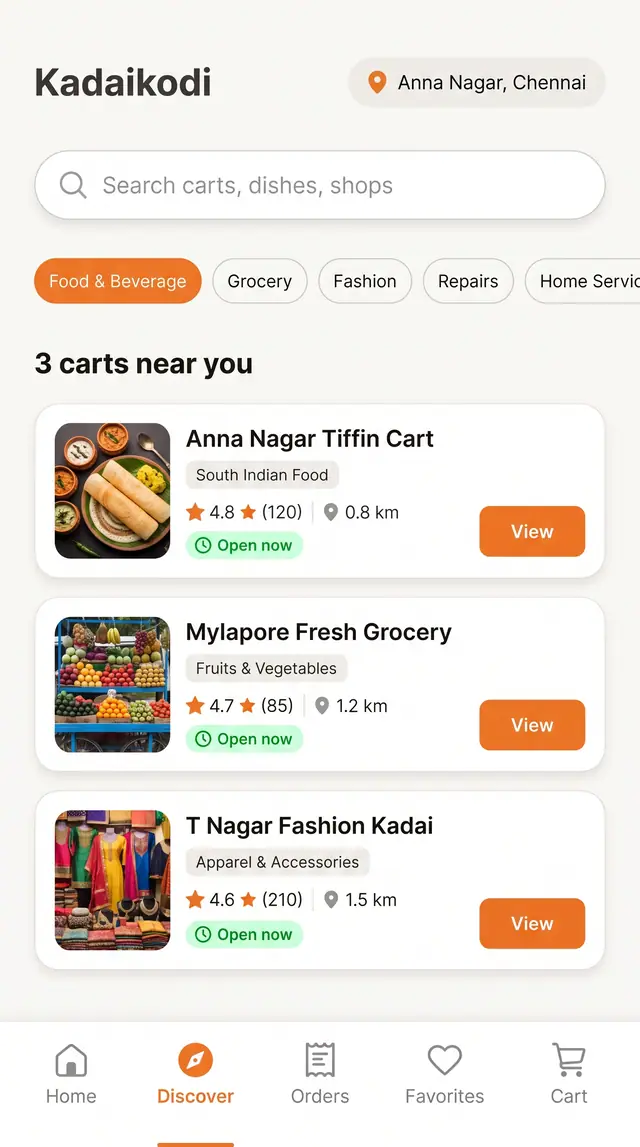
Discover Nearby Carts and Shops
Search, filter and browse open carts near you, then open one and build an order from its menu.
4 illustrations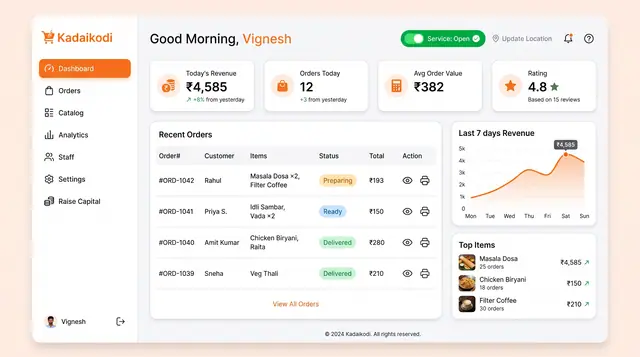
Merchant Dashboard and Order Lifecycle
See the day's revenue, orders and rating, open the storefront, and move each order from new to dispatched.
2 illustrations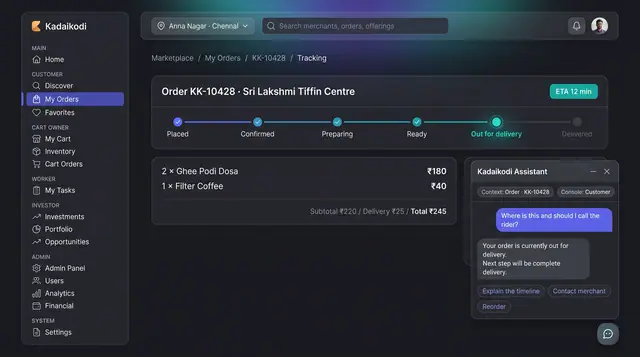
In-Context Assistant and Daily Proposals
An assistant that already knows which order you are looking at, and a daily queue of suggested changes you accept, edit or dismiss.
2 illustrations